OnStream Not Working on Firestick – Step-by-Step Fix
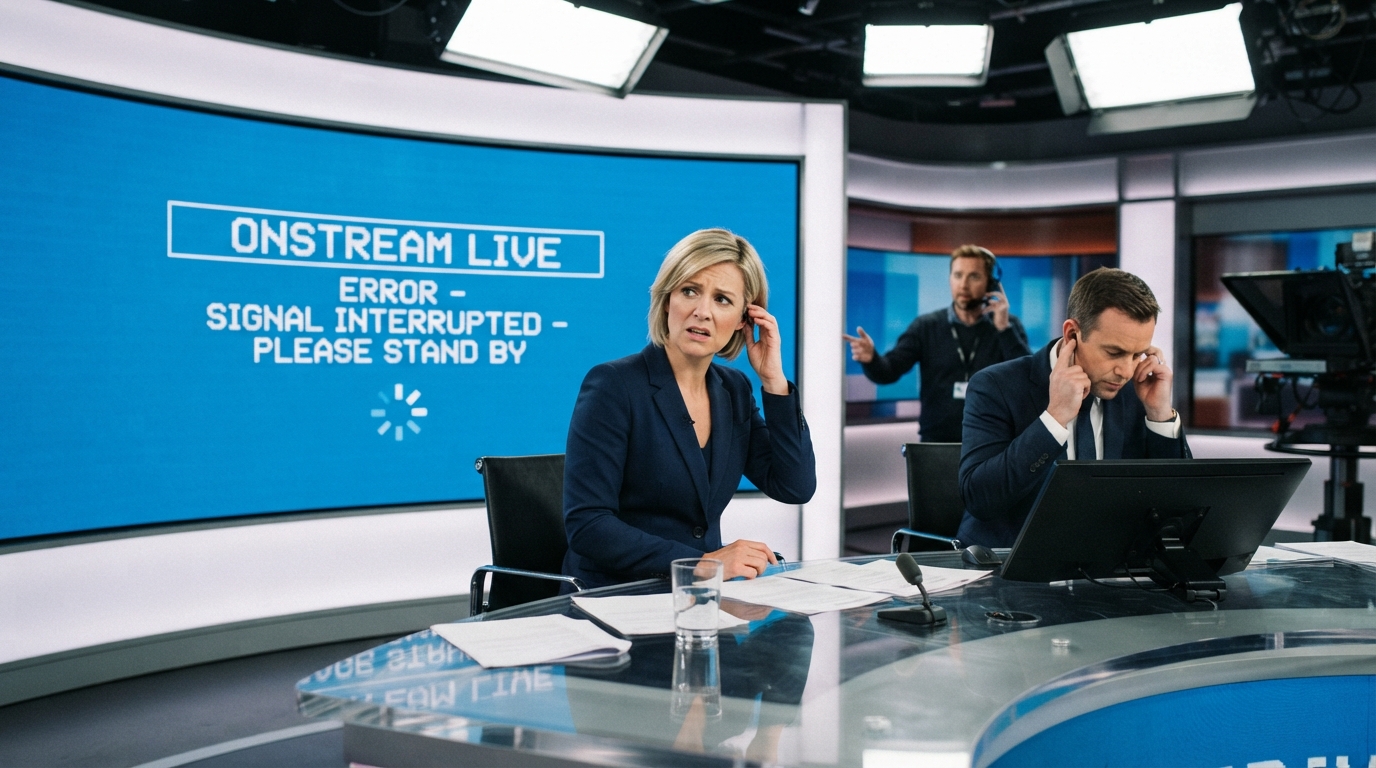
If OnStream is not working on your Amazon Firestick, you may experience issues such as the app not opening, crashing, buffering, getting stuck on the loading screen, or showing playback errors. These problems are usually caused by outdated app versions, poor internet connectivity, corrupted cache files, or temporary server issues.
This guide walks you through the most effective solutions to fix OnStream on Firestick and restore smooth streaming.
Common OnStream Issues on Firestick
Firestick users commonly report the following problems:
- OnStream won’t open
- App keeps crashing
- Stuck on the loading screen
- Constant buffering
- Black screen during playback
- Login issues
- Playback failed errors
- Movies or TV shows not loading
Most of these issues can be resolved without resetting your Firestick.
Check Your Internet Connection
A stable internet connection is essential for streaming.
Follow these steps:
- Restart your Wi-Fi router.
- Move your Firestick closer to the router if the signal is weak.
- Disconnect and reconnect your Wi-Fi.
- Test your internet speed.
- Switch to a faster network if available.
Slow internet is one of the most common causes of streaming problems.
Restart Your Firestick
Restarting the device clears temporary system glitches.
To restart:
- Go to Settings.
- Select My Fire TV.
- Choose Restart.
Alternatively:
- Unplug the Firestick from the power source.
- Wait for 30 seconds.
- Plug it back in and turn it on.
Once restarted, open OnStream again.
Force Stop the OnStream App
Force stopping the app can eliminate temporary errors.
Steps:
- Open Settings.
- Select Applications.
- Choose Manage Installed Applications.
- Select OnStream.
- Tap Force Stop.
- Reopen the app.
This often fixes freezing and loading issues.
Clear the App Cache
Corrupted cache files can prevent OnStream from functioning properly.
To clear the cache:
- Open Settings.
- Go to Applications.
- Select Manage Installed Applications.
- Choose OnStream.
- Tap Clear Cache.
Launch the app again and check whether the issue has been resolved.
Clear App Data
If clearing the cache doesn’t help, clear the app data.
Steps:
- Open Settings.
- Navigate to Applications.
- Select Manage Installed Applications.
- Choose OnStream.
- Tap Clear Data.
Keep in mind that this resets the app to its default settings.
Update OnStream to the Latest Version
Using an older version of the app can lead to compatibility problems and bugs.
To update:
- Download the latest version of the OnStream APK.
- Install it over the existing version.
- Restart your Firestick.
- Launch the app.
Keeping the app updated improves performance and fixes known issues.
Check If OnStream Servers Are Down
Sometimes the problem isn’t with your Firestick.
If the OnStream servers are unavailable:
- Wait until the service is restored.
- Check official announcements or user communities for updates.
- Try opening the app later.
Server outages cannot be fixed from your device.
Restart Your Firestick Network Connection
Refreshing your network connection may resolve streaming issues.
You can do this by:
- Disconnecting from Wi-Fi.
- Waiting for a few seconds.
- Reconnecting to the network.
- Opening OnStream again.
This helps establish a fresh connection to the servers.
Disable VPN
If you’re using a VPN, it may interfere with OnStream.
Try these steps:
- Turn off your VPN.
- Restart the app.
- Check whether OnStream works normally.
If disabling the VPN fixes the problem, try connecting through a different VPN server.
Free Up Firestick Storage
Low storage can affect app performance and cause crashes.
To free up storage:
- Remove unused apps.
- Delete unnecessary downloads.
- Clear cache from other installed apps.
- Remove temporary files if possible.
Having enough free storage helps OnStream run more smoothly.
Update Firestick Software
Outdated Fire OS versions can create compatibility issues.
To check for updates:
- Open Settings.
- Select My Fire TV.
- Choose About.
- Select Check for Updates.
- Install any available updates.
Restart your Firestick after updating.
Reinstall the OnStream App
If none of the previous methods work, reinstalling the app can replace damaged files.
Steps:
- Uninstall OnStream.
- Restart your Firestick.
- Download the latest version of the app.
- Install it again.
- Open the app.
A fresh installation often resolves persistent issues.
Check Available RAM
Running too many apps in the background can reduce Firestick performance.
To improve performance:
- Close unused applications.
- Restart the Firestick regularly.
- Avoid running multiple streaming apps simultaneously.
More available memory helps OnStream operate without interruptions.
Verify the APK Installation
If you installed OnStream manually, the APK file may have been corrupted.
To fix this:
- Delete the current installation.
- Download a fresh copy of the latest APK.
- Install it again.
- Launch the app.
Using a complete and uncorrupted installation file helps prevent startup and playback problems.
Try Again Later
If the app still isn’t working, temporary server congestion may be the cause.
Wait 15 to 30 minutes before trying again. Many server-related issues are resolved automatically after a short period.
Contact OnStream Support
If you’ve tried every solution and OnStream still doesn’t work on your Firestick, contact the support team.
When requesting assistance, include:
- Firestick model
- Fire OS version
- OnStream app version
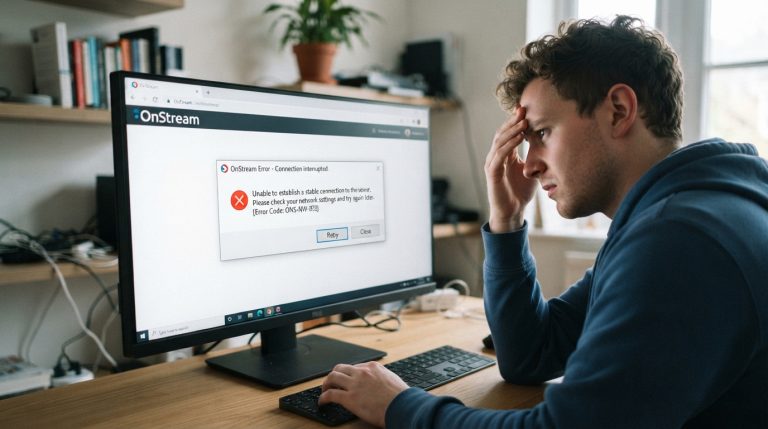
- Screenshot of the error message
- Description of the issue
Providing these details helps the support team identify the problem and recommend the appropriate solution.