How to Fix OnStream App on Android TV
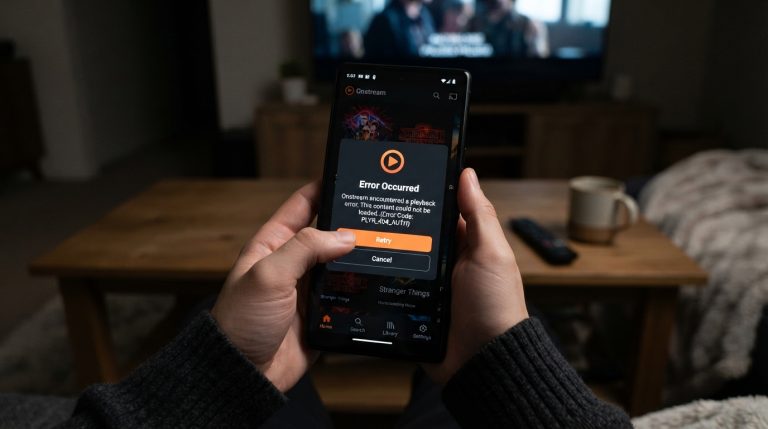
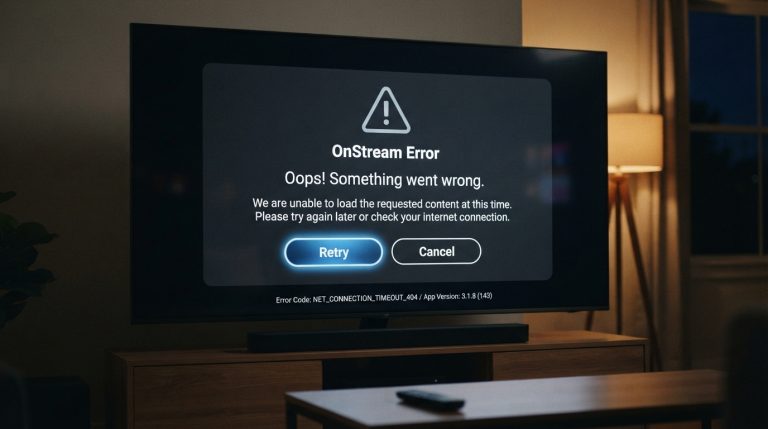
If the OnStream app is not working on your Android TV, you’re not alone. Users may experience issues such as the app not opening, crashing, getting stuck on the loading screen, buffering constantly, or showing playback errors. These problems are usually caused by an outdated app version, internet issues, corrupted cache files, or device compatibility problems.
This guide explains the most effective ways to fix OnStream on Android TV and get back to streaming your favorite movies and TV shows.
Common OnStream Problems on Android TV
You may encounter one or more of the following issues:
- App won’t open
- Stuck on the loading screen
- Frequent crashes
- Constant buffering
- Black screen
- Playback failed or no playable source
- Login problems
- Movies or TV shows not loading
Most of these issues can be fixed without resetting your TV.
Check Your Internet Connection
A slow or unstable internet connection is one of the most common reasons OnStream doesn’t work properly.
Try these steps:
- Restart your Wi-Fi router.
- Disconnect and reconnect your Android TV to Wi-Fi.
- Switch to a faster network if available.
- Run a speed test to confirm your connection is stable.
For HD streaming, a connection of at least 10 Mbps is generally recommended.
Restart Your Android TV
A simple restart clears temporary system glitches.
To restart:
- Turn off your Android TV.
- Unplug it from the power outlet.
- Wait for 30 seconds.
- Plug it back in and turn it on.
- Open OnStream again.
This refreshes the operating system and background services.
Force Stop the OnStream App
Force stopping the app can resolve temporary issues.
Steps:
- Open Settings.
- Go to Apps.
- Select OnStream.
- Tap Force Stop.
- Launch the app again.
Many users find this resolves freezing and loading issues.
Clear the App Cache
Corrupted cache files can prevent OnStream from working correctly.
To clear the cache:
- Open Settings.
- Select Apps.
- Choose OnStream.
- Open Storage.
- Tap Clear Cache.
Restart the app after clearing the cache.
Clear App Data
If clearing the cache doesn’t solve the issue, clear the app data.
Steps:
- Open Settings > Apps > OnStream.
- Select Storage.
- Tap Clear Data.
- Open the app again.
This removes temporary files and restores the app to its default settings.
Update OnStream to the Latest Version
Running an outdated version may cause crashes, buffering, or playback errors.
To update:
- Download the latest version of OnStream.
- Install it over the existing version or reinstall it if necessary.
- Restart your Android TV.
- Launch the app again.
Keeping the app updated helps fix known bugs and improves compatibility.
Check If OnStream Servers Are Down
Sometimes the issue isn’t with your Android TV.
If OnStream’s servers are undergoing maintenance or experiencing technical problems:
- Wait for the servers to come back online.
- Try again after some time.
- Check official announcements or community discussions for updates.
Server-related issues cannot be fixed from your device.
Disable VPN or Proxy
Some VPN servers may interfere with OnStream.
Try these steps:
- Turn off your VPN.
- Disable any proxy settings.
- Restart the app.
- Check whether the problem has been resolved.
If the app works without the VPN, try using another server.
Free Up Storage Space
Low storage can affect app performance.
To free up storage:
- Delete unused apps.
- Remove unnecessary downloads.
- Clear cached files from other apps.
- Delete temporary files.
Keeping sufficient free storage helps Android TV run more smoothly.
Check Android TV Software Updates
Outdated system software can cause compatibility problems.
To update your TV:
- Open Settings.
- Go to Device Preferences.
- Select About.
- Tap System Update.
- Install any available updates.
Restart your TV after updating.
Reinstall the OnStream App
If the app continues to malfunction, reinstalling it can replace damaged installation files.
Steps:
- Uninstall OnStream.
- Restart your Android TV.
- Install the latest version.
- Open the app and test it.
A clean installation often fixes persistent issues.
Enable Installation from Unknown Sources
If you’re installing the APK manually, Android TV must allow apps from unknown sources.
To enable this:
- Open Settings.
- Navigate to Security or Apps.
- Select Install Unknown Apps.
- Allow permission for the app you’re using to install the APK, such as Downloader or your file manager.
Without this permission, the installation may fail.
Check Device Compatibility
OnStream works best on Android TV devices that meet the minimum system requirements.
Make sure your device:
- Runs a supported Android TV version.
- Has enough free storage.
- Has sufficient RAM for smooth streaming.
- Uses the latest available firmware.
Older devices may experience slower performance or compatibility issues.
Try Opening OnStream Later
If none of the solutions work, the issue may be temporary.
Heavy server traffic or ongoing maintenance can prevent the app from functioning correctly. Wait 15 to 30 minutes before trying again.
Contact OnStream Support
If OnStream still isn’t working on your Android TV, contact the support team.
Include the following information:
- Android TV brand and model
- Android TV version
- OnStream app version
- Screenshot of the error message
- Description of the issue
Providing detailed information helps the support team identify the cause and offer an appropriate solution.