OnStream App Stuck on Loading Screen – Easy Fixes
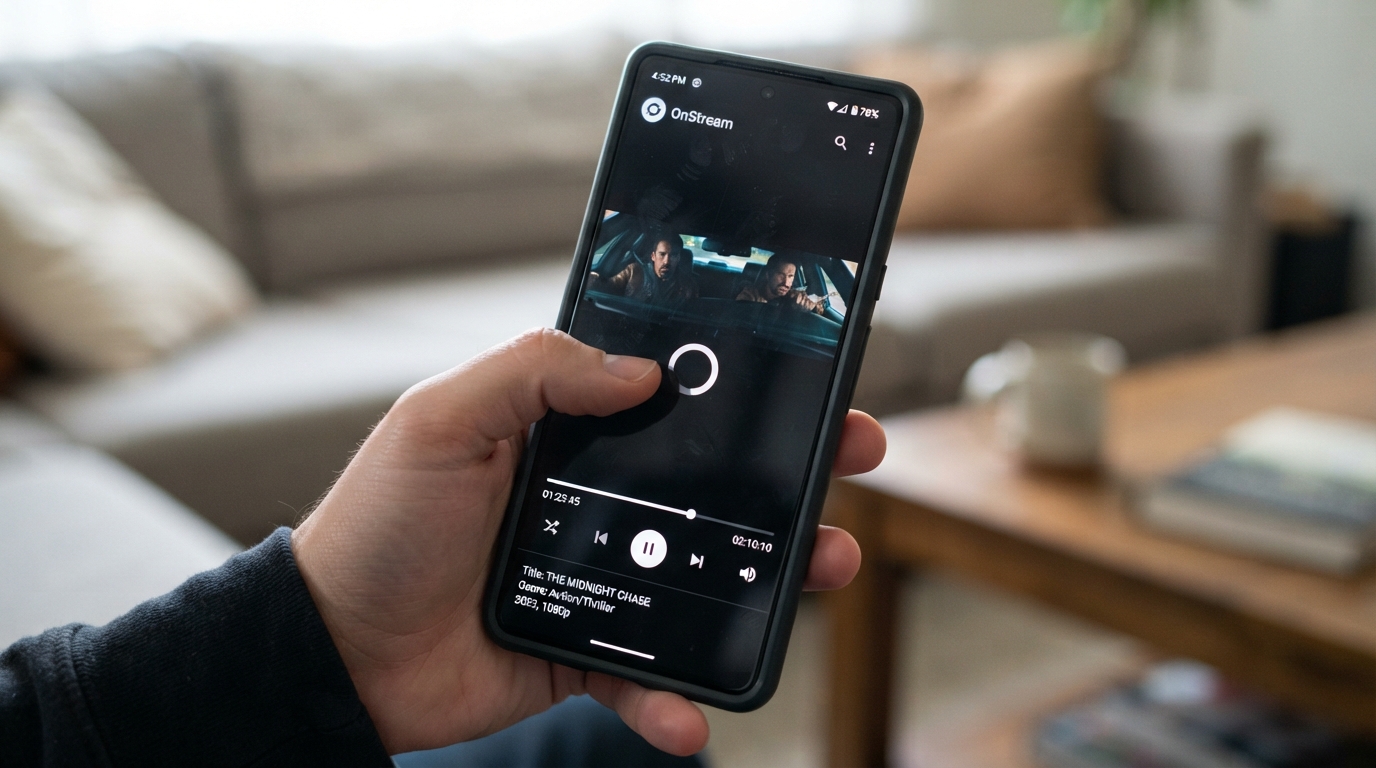
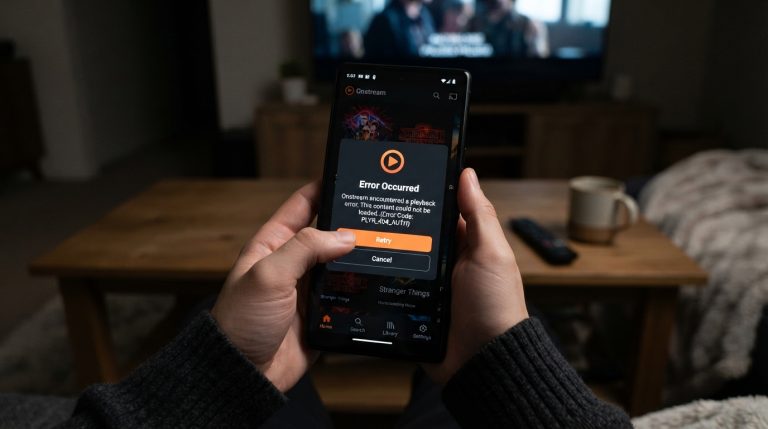
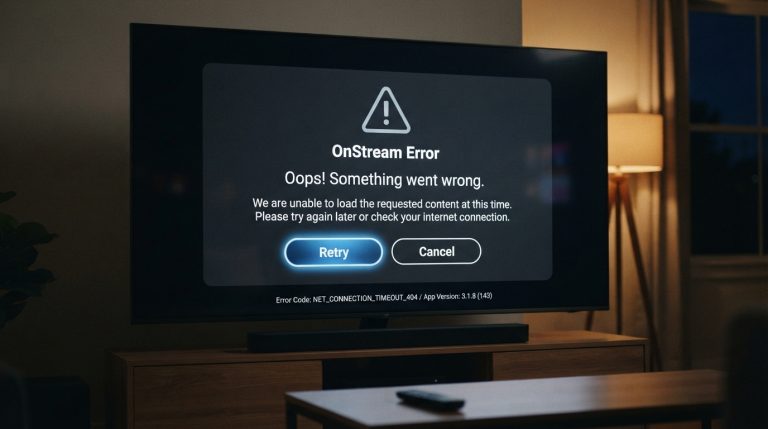
If the OnStream app gets stuck on the loading screen and never opens, you’re not alone. This issue can occur due to a poor internet connection, corrupted cache files, outdated app versions, or temporary server problems. Fortunately, you can usually fix the problem within a few minutes by following a few simple troubleshooting steps.
This guide explains the most common reasons why OnStream gets stuck on the loading screen and provides effective solutions to get the app working again.
Why Is OnStream Stuck on the Loading Screen?
Several factors can prevent the app from loading properly, including:
- Slow or unstable internet connection
- Corrupted app cache or data
- Outdated OnStream version
- Temporary server outage
- Insufficient device storage
- VPN or proxy interference
- Software bugs
- Device compatibility issues
Finding the root cause makes it easier to resolve the problem.
Check Your Internet Connection
A stable internet connection is required for OnStream to load content.
Try these steps:
- Switch between Wi-Fi and mobile data.
- Restart your Wi-Fi router.
- Turn Airplane Mode on for 30 seconds, then disable it.
- Test your internet speed.
- Avoid using unstable public Wi-Fi networks.
If your connection is slow, the app may remain on the loading screen.
Restart the OnStream App
Temporary glitches can stop the app from launching correctly.
To restart the app:
- Close OnStream completely.
- Remove it from the Recent Apps list.
- Wait a few seconds.
- Open the app again.
This simple step often resolves temporary loading issues.
Clear the App Cache
Corrupted cache files can prevent the app from starting.
To clear the cache:
- Open Settings.
- Go to Apps.
- Select OnStream.
- Tap Storage.
- Choose Clear Cache.
Launch the app again to see if the loading issue has been resolved.
Clear App Data
If clearing the cache doesn’t work, clearing app data may fix the problem.
Steps:
- Open Settings > Apps > OnStream.
- Tap Storage.
- Select Clear Data.
- Reopen the app.
You’ll need to configure the app again, but this often fixes persistent loading problems.
Update OnStream to the Latest Version
Older versions of OnStream may contain bugs that cause loading issues.
To update the app:
- Download the latest official version of OnStream.
- Install the update.
- Restart your device.
- Open the app again.
Using the latest version improves stability and compatibility.
Check If OnStream Servers Are Down
Sometimes the issue is caused by server maintenance or temporary outages.
If the servers are unavailable:
- Wait for a while before trying again.
- Check official announcements or community updates.
- Retry after the service has been restored.
No troubleshooting on your device will help if the servers are temporarily offline.
Restart Your Device
Restarting your phone or tablet refreshes system processes and clears temporary errors.
To restart:
- Turn off your device.
- Wait for 30 seconds.
- Turn it back on.
- Open OnStream.
This quick fix often solves loading screen problems.
Disable VPN or Proxy
VPNs and proxy services may interfere with OnStream’s connection.
Try the following:
- Disable your VPN.
- Turn off any proxy settings.
- Restart the app.
- Check if it loads normally.
If the app works without the VPN, try connecting through a different server.
Free Up Storage Space
Low storage can prevent apps from loading correctly.
To create more space:
- Delete unused apps.
- Remove duplicate photos and videos.
- Clear downloaded files.
- Empty your recycle bin if available.
Keeping enough free storage helps apps run smoothly.
Check Device Date and Time
Incorrect date and time settings can affect secure server communication.
To fix this:
- Open Settings.
- Go to Date & Time.
- Enable Automatic Date & Time.
- Restart the app.
Correct system time helps establish secure connections.
Force Stop the App
Force stopping OnStream can clear temporary background errors.
Steps:
- Open Settings.
- Tap Apps.
- Select OnStream.
- Tap Force Stop.
- Reopen the app.
This refreshes the app without restarting your entire device.
Reinstall the OnStream App
If nothing else works, reinstalling the app can replace corrupted files.
Steps:
- Uninstall OnStream.
- Restart your device.
- Download the latest version.
- Install the app.
- Launch it again.
A clean installation often resolves stubborn loading issues.
Check for Android System Updates
An outdated Android version may cause compatibility problems.
To update your device:
- Open Settings.
- Go to System Update.
- Check for available updates.
- Install any pending updates.
- Restart your device.
Updated system software improves app performance and stability.
Try Opening OnStream Later
If many users are accessing the service simultaneously, the servers may become overloaded.
Wait 15 to 30 minutes and try opening the app again. Temporary server congestion often resolves on its own.
Contact OnStream Support
If the app still remains stuck on the loading screen, you may need assistance from the support team.
When contacting support, include:
- Device model
- Android version
- OnStream app version
- Screenshot of the loading screen
- Description of the issue
Providing these details helps the support team identify the problem more quickly.