How to Fix OnStream Login Problems
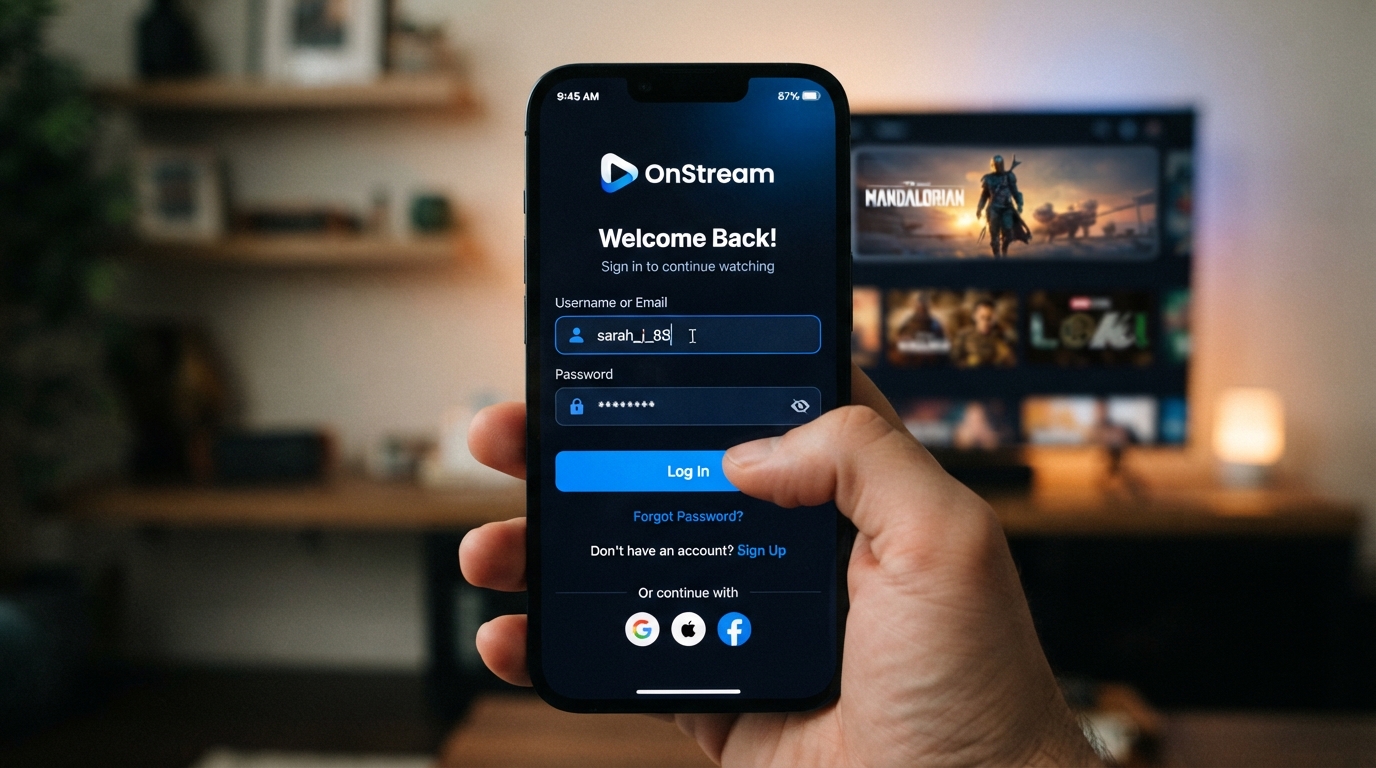
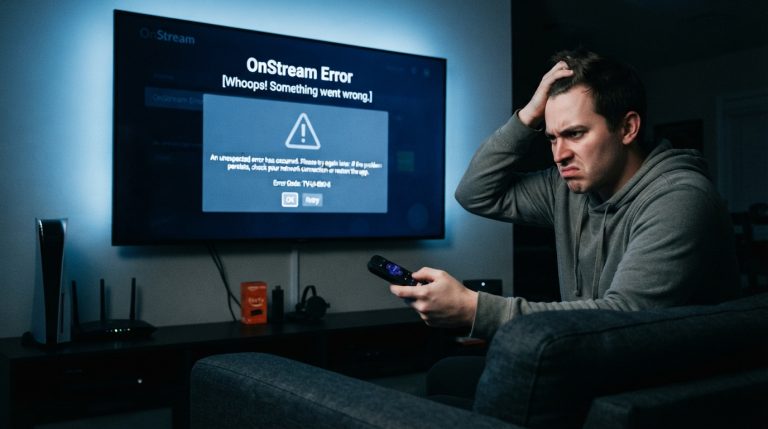
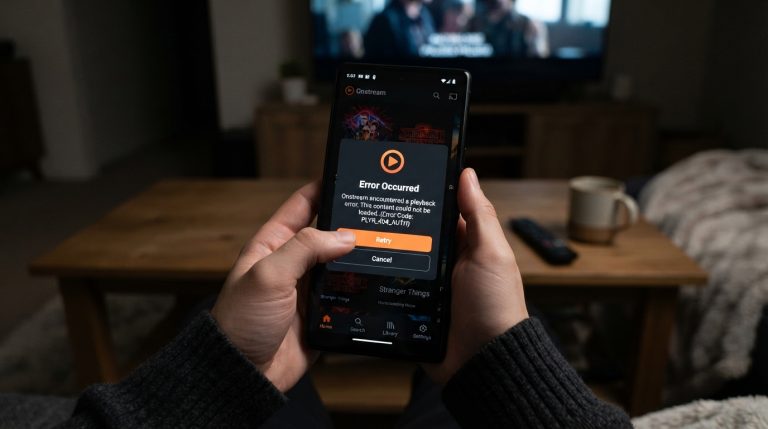
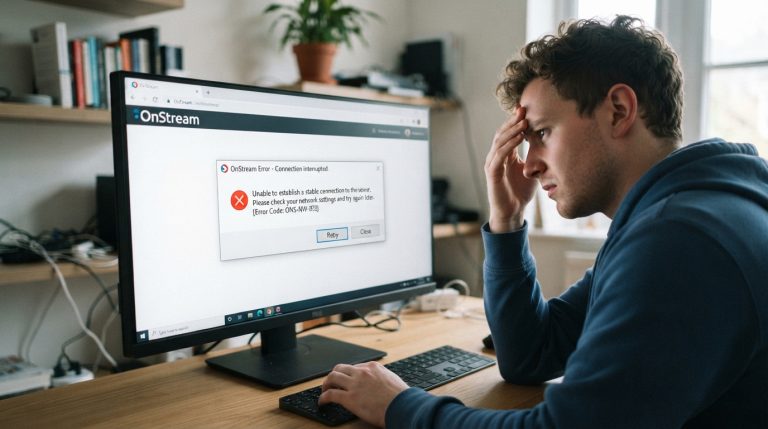
If you’re unable to log in to the OnStream app, you’re not alone. Many users occasionally face login issues due to network problems, outdated app versions, server outages, or incorrect account details. The good news is that most login problems can be fixed in just a few minutes.
This guide explains the most common causes of OnStream login issues and provides step-by-step solutions to help you regain access to your account.
Why Does OnStream Show Login Errors?
There are several reasons why the OnStream app may fail to log you in, including:
- Incorrect email or password
- Weak or unstable internet connection
- Temporary OnStream server issues
- Outdated version of the app
- Corrupted app cache or data
- VPN or proxy interference
- Device compatibility problems
- Temporary account verification issues
Identifying the exact cause makes it much easier to resolve the problem.
Check Your Internet Connection
A stable internet connection is essential for logging into OnStream.
Try these steps:
- Switch between Wi-Fi and mobile data.
- Restart your Wi-Fi router.
- Enable Airplane Mode for 30 seconds and disable it.
- Run a speed test to ensure your connection is stable.
- Avoid public Wi-Fi networks with restricted access.
If your internet connection is unstable, the app may fail to authenticate your account.
Verify Your Login Credentials
Double-check your email address and password before trying again.
Make sure:
- Caps Lock is turned off.
- There are no extra spaces in the email address.
- You are using the correct password.
- Your email address is entered correctly.
If you’ve forgotten your password, use the password recovery option if available.
Restart the OnStream App
Temporary glitches can prevent successful login.
To restart the app:
- Close OnStream completely.
- Remove it from recent apps.
- Wait a few seconds.
- Open the app again.
- Try logging in.
A simple restart often resolves temporary authentication errors.
Clear OnStream Cache
Corrupted cache files are one of the most common causes of login problems.
To clear the cache on Android:
- Open Settings.
- Tap Apps.
- Select OnStream.
- Open Storage.
- Tap Clear Cache.
Launch the app again and try signing in.
Clear App Data
If clearing the cache doesn’t help, clearing app data may solve the issue.
Steps:
- Go to Settings > Apps > OnStream.
- Tap Storage.
- Select Clear Data.
- Open the app again.
- Log in using your account details.
Keep in mind that this resets the app’s settings.
Update the OnStream App
Older versions of the app may experience authentication bugs.
To update:
- Download the latest official version of OnStream.
- Install the update over your existing app.
- Restart your device.
- Try logging in again.
Using the latest version ensures compatibility with the newest servers.
Check If OnStream Servers Are Down
Sometimes the issue isn’t on your device.
If OnStream’s servers are temporarily unavailable:
- Wait for the service to recover.
- Check official announcements or community pages.
- Try logging in again after some time.
Server maintenance can temporarily block login requests.
Disable VPN or Proxy
VPN services sometimes interfere with OnStream’s authentication system.
Try these steps:
- Turn off your VPN.
- Disable any proxy settings.
- Restart the app.
- Attempt to log in again.
If login works after disabling the VPN, the VPN server may have been blocked.
Restart Your Device
A full device restart refreshes system services and network connections.
To restart:
- Turn off your device.
- Wait for 30 seconds.
- Turn it back on.
- Launch OnStream.
- Try signing in.
This simple solution often fixes temporary software conflicts.
Reinstall the OnStream App
If the login issue persists, reinstalling the app can replace damaged files.
Steps:
- Uninstall OnStream.
- Restart your device.
- Download the latest version.
- Install the app.
- Log in again.
A fresh installation removes corrupted app files that may be causing the problem.
Check Device Date and Time
Incorrect date and time settings can interfere with secure login verification.
To fix this:
- Open Settings.
- Go to Date & Time.
- Enable Automatic Date & Time.
- Restart the app.
Accurate system time helps establish secure connections.
Free Up Device Storage
Low storage space may prevent the app from functioning correctly.
You can:
- Delete unused apps.
- Remove duplicate photos.
- Clear downloads.
- Delete temporary files.
Keeping at least 1–2 GB of free storage helps apps perform smoothly.
Check Device Compatibility
Older Android devices may struggle with the latest version of OnStream.
Ensure that:
- Your operating system meets the app’s requirements.
- Google Play Services are updated if needed.
- Your device has enough RAM and storage.
If your device is outdated, installing a compatible version may help.
Try Logging In Later
Sometimes login failures are caused by temporary server congestion.
Wait 15–30 minutes and try again. Many temporary login problems resolve automatically without requiring any changes to your device.
Contact OnStream Support
If none of the above methods work, the issue may be related to your account.
When contacting support, provide:
- Your device model
- Android version
- OnStream app version
- Screenshot of the login error
- A brief description of the problem
This information helps the support team diagnose and resolve your issue more quickly.