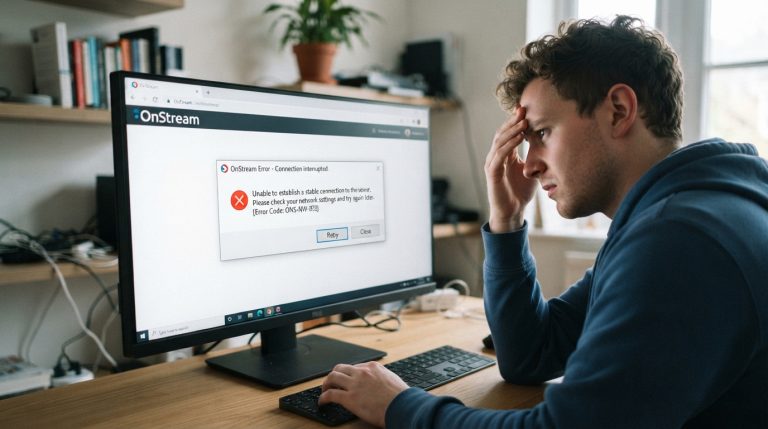
How to Fix OnStream “Something Went Wrong” Error
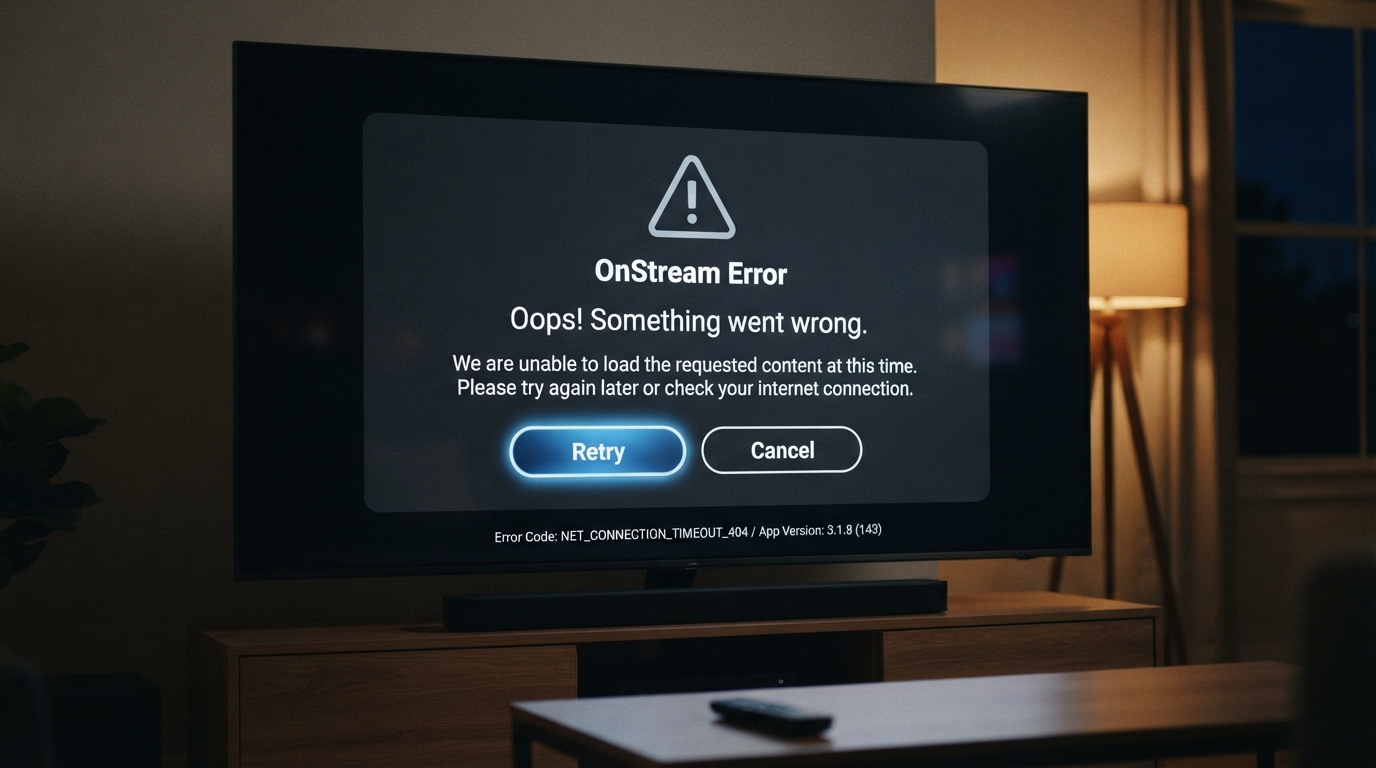
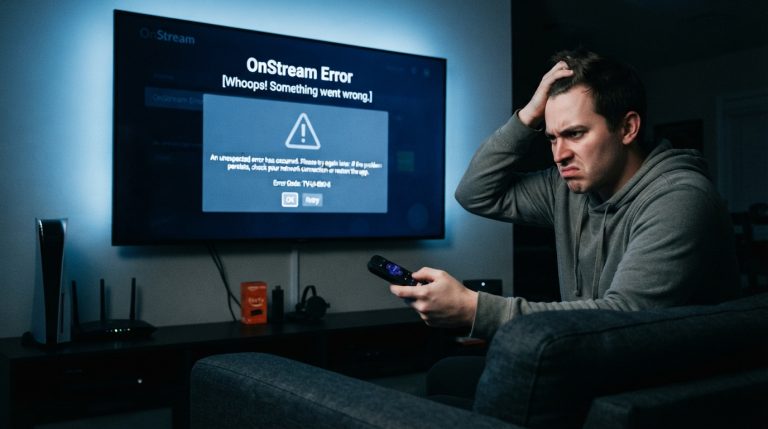
The “Something Went Wrong” error is one of the most common issues OnStream users encounter. It can appear when opening the app, signing in, browsing content, or trying to play a movie or TV show. In most cases, this error is caused by temporary network issues, server problems, corrupted app data, or an outdated version of the app.
Fortunately, you can usually fix the problem by following a few simple troubleshooting steps.
Why Does OnStream Show the “Something Went Wrong” Error?
This error can occur for several reasons, including:
- Poor or unstable internet connection
- Temporary OnStream server issues
- Outdated version of the app
- Corrupted cache or app data
- VPN or proxy conflicts
- Low device storage
- Software bugs
- Device compatibility issues
Finding the cause makes it easier to apply the right solution.
Check Your Internet Connection
A weak or unstable internet connection is one of the most common reasons for this error.
Try these steps:
- Restart your Wi-Fi router.
- Switch between Wi-Fi and mobile data.
- Run an internet speed test.
- Move closer to your router if the signal is weak.
- Disconnect other devices using the same network.
Once your connection is stable, reopen OnStream and check if the error has disappeared.
Restart the OnStream App
Sometimes the error is caused by a temporary app glitch.
To restart the app:
- Close OnStream completely.
- Remove it from the Recent Apps screen.
- Wait for a few seconds.
- Open the app again.
A simple restart often resolves temporary issues.
Restart Your Device
Restarting your Android phone, tablet, Android TV, or Firestick refreshes the operating system and clears temporary software conflicts.
Steps:
- Turn off your device.
- Wait for about 30 seconds.
- Turn it back on.
- Launch OnStream.
Many users find this fixes unexpected errors.
Clear the App Cache
Corrupted cache files can interfere with the app’s normal operation.
To clear the cache:
- Open Settings.
- Tap Apps.
- Select OnStream.
- Open Storage.
- Tap Clear Cache.
Restart the app and check whether the error has been resolved.
Clear App Data
If clearing the cache doesn’t work, clearing the app data may solve the issue.
Steps:
- Go to Settings > Apps > OnStream.
- Tap Storage.
- Select Clear Data.
- Open the app again.
This resets the application and removes temporary files that may be causing the problem.
Update OnStream to the Latest Version
Older versions of the app may contain bugs that trigger the “Something Went Wrong” message.
To update:
- Download the latest version of OnStream from a trusted source.
- Install the update.
- Restart your device.
- Launch the app again.
Keeping the app updated ensures better compatibility and stability.
Check If OnStream Servers Are Down
Sometimes the problem isn’t on your device.
If OnStream’s servers are undergoing maintenance or experiencing an outage, the app may display this error.
In this case:
- Wait for the servers to become available.
- Check official announcements or community discussions.
- Try using the app again later.
Disable VPN or Proxy
VPNs and proxy services can sometimes interfere with the app’s connection.
Try these steps:
- Turn off your VPN.
- Disable any proxy settings.
- Restart OnStream.
- Check if the error has disappeared.
If the app works normally, your VPN server may be causing the issue.
Free Up Device Storage
Low storage space can affect app performance and cause unexpected errors.
To free up space:
- Delete unused applications.
- Remove unnecessary downloads.
- Clear temporary files.
- Delete duplicate photos and videos.
Keeping enough free storage improves overall app stability.
Check Device Date and Time
Incorrect date and time settings can interfere with secure connections.
To fix this:
- Open Settings.
- Go to Date & Time.
- Enable Automatic Date & Time.
- Restart the app.
Accurate system time helps the app communicate properly with its servers.
Reinstall the OnStream App
If none of the above methods work, reinstalling the app can replace corrupted installation files.
Follow these steps:
- Uninstall OnStream.
- Restart your device.
- Download the latest version.
- Install the app again.
- Open OnStream.
A clean installation often resolves persistent issues.
Check for Android System Updates
Running an outdated version of Android may create compatibility issues.
To update your device:
- Open Settings.
- Select System Update.
- Install any available updates.
- Restart your device.
System updates improve compatibility with newer app versions.
Try Again Later
If you’ve already tried all the troubleshooting methods, the error may be temporary.
Heavy server traffic or scheduled maintenance can occasionally trigger the “Something Went Wrong” message. Waiting 15 to 30 minutes before trying again often resolves the issue.
Contact OnStream Support
If the error continues to appear after trying every solution, contact the OnStream support team.
When reporting the issue, include:
- Device model
- Android version
- OnStream app version
- Screenshot of the error message
- A brief description of when the error occurs
Providing detailed information helps the support team investigate the issue more efficiently.
By following these troubleshooting steps, you can resolve most “Something Went Wrong” errors in OnStream and enjoy uninterrupted streaming on your Android phone, Android TV, Firestick, or other compatible devices.