How to Fix OnStream App After an Android Update
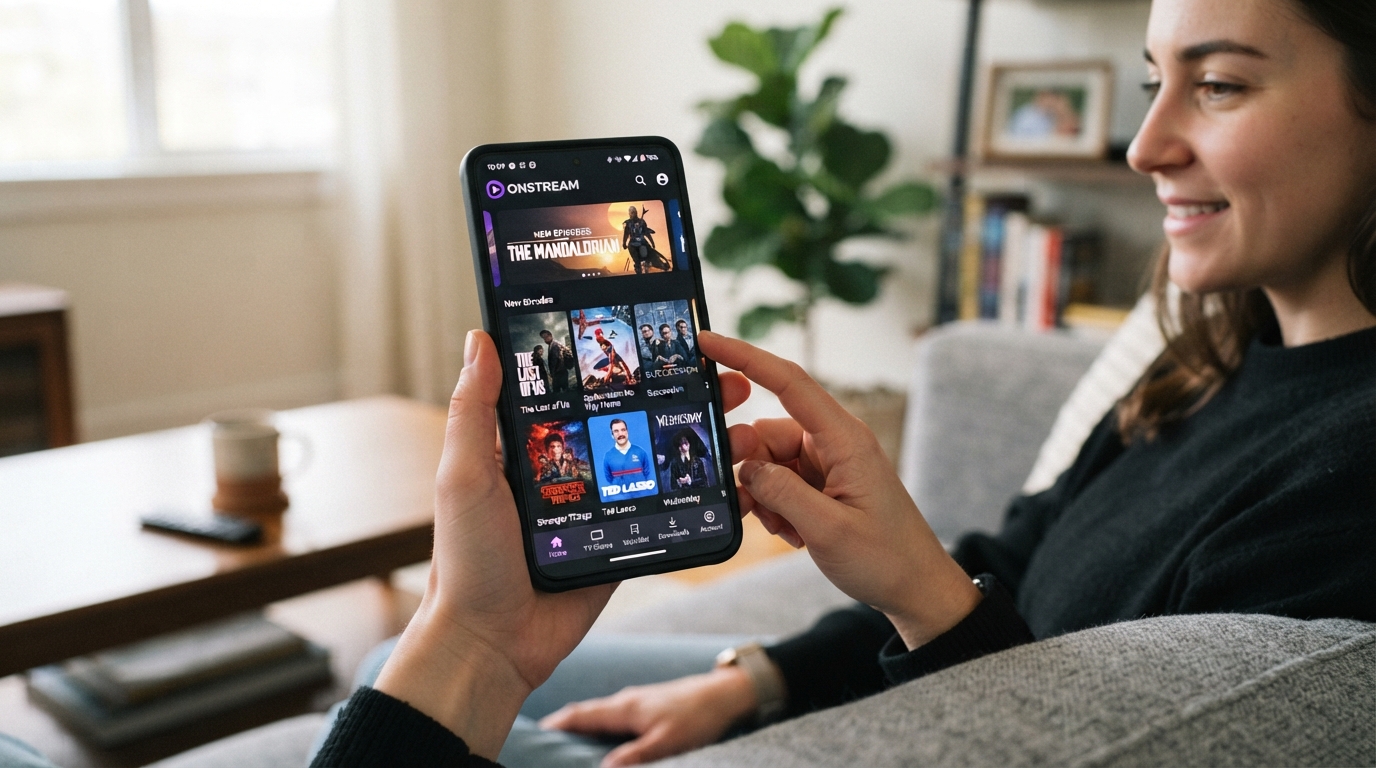
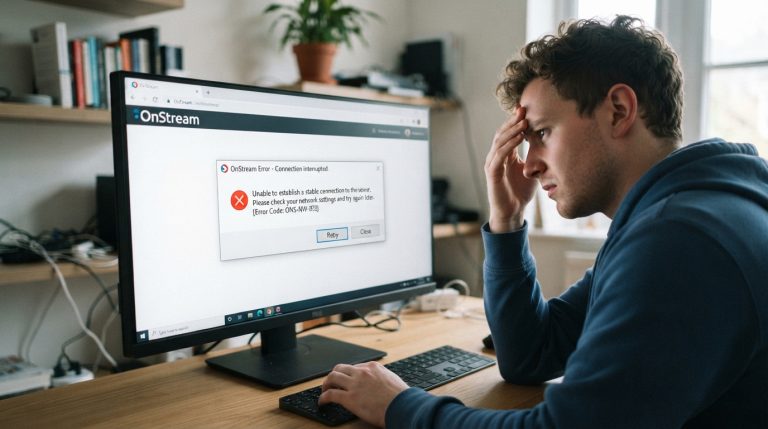
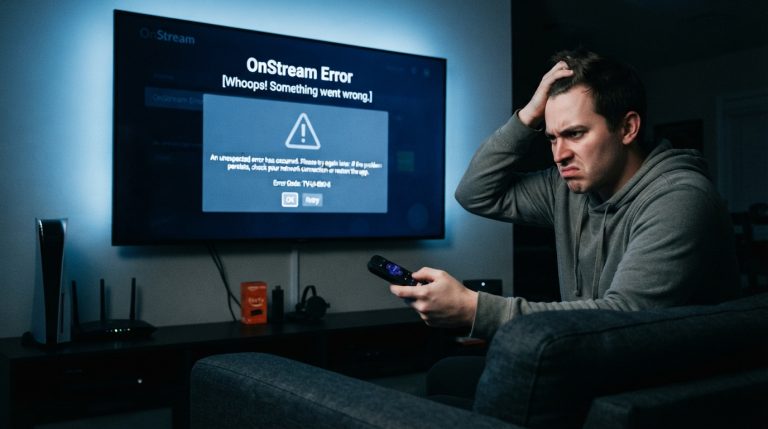
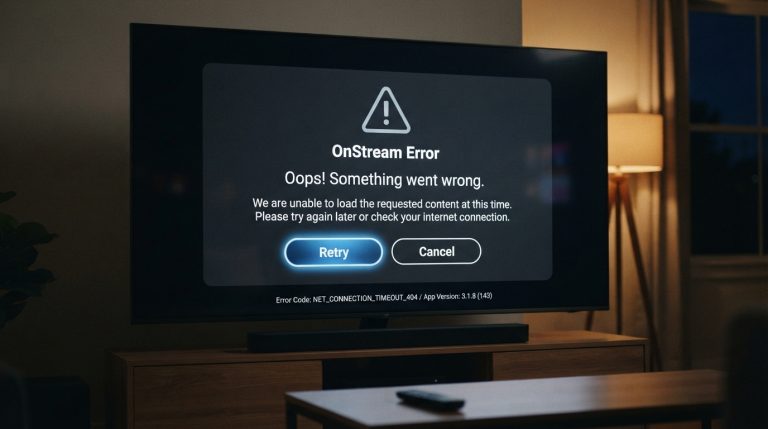
Updating your Android device can improve security, performance, and introduce new features. However, some users notice that the OnStream app stops working properly after installing an Android update. Common issues include the app crashing, getting stuck on the loading screen, buffering constantly, or failing to play videos.
Fortunately, these problems are usually caused by compatibility or cached data issues and can often be fixed in just a few minutes. Follow the troubleshooting methods below to get OnStream working again.
Why Does OnStream Stop Working After an Android Update?
When Android receives a major system update, some apps may temporarily become incompatible until they are updated. In other cases, old cache files or system settings may conflict with the new version of Android.
Common causes include:
- Outdated version of the OnStream app
- Corrupted app cache
- Damaged app data
- Compatibility issues with the latest Android version
- Temporary software bugs
- Insufficient storage space
- Pending Android optimization after the update
Restart Your Device
The first step is to restart your phone or tablet. A restart allows Android to complete background processes that may still be running after the system update.
Simply turn off your device, wait for about 30 seconds, and turn it back on. After restarting, open OnStream and check if the issue has been resolved.
Update the OnStream App
If you’re using an older version of OnStream, it may not be fully compatible with the latest Android update.
Download and install the newest available version of the app, then restart your device before opening it again. Developers often release updates to improve compatibility with new Android versions.
Clear the App Cache
Old cache files created before the Android update can sometimes prevent apps from working correctly.
To clear the cache:
- Open Settings.
- Tap Apps.
- Select OnStream.
- Open Storage.
- Tap Clear Cache.
Launch the app again to see if the problem has been fixed.
Clear App Data
If clearing the cache doesn’t work, try clearing the app data.
Steps:
- Go to Settings > Apps > OnStream.
- Select Storage.
- Tap Clear Data.
This resets the app to its default state and removes temporary files that may be causing conflicts.
Check Your Internet Connection
Sometimes the issue isn’t related to the Android update at all. A weak or unstable internet connection can cause loading errors and playback failures.
Try these tips:
- Restart your Wi-Fi router.
- Switch between Wi-Fi and mobile data.
- Test your internet speed.
- Move closer to your router if the signal is weak.
A stable connection is essential for smooth streaming.
Free Up Storage Space
Android updates often require additional storage for temporary files and system optimization.
If your device is running low on storage:
- Delete unused apps.
- Remove duplicate photos and videos.
- Clear downloaded files.
- Empty your recycle bin if available.
Keeping at least 1–2 GB of free storage can improve app performance.
Check for Another Android Update
Occasionally, manufacturers release a small follow-up update shortly after a major Android release to fix bugs and improve compatibility.
To check for updates:
- Open Settings.
- Go to System Update.
- Install any available updates.
- Restart your device.
This may resolve issues affecting multiple apps.
Reinstall the OnStream App
If the app still isn’t working, reinstalling it can replace damaged or incompatible files.
To reinstall:
- Uninstall OnStream.
- Restart your device.
- Install the latest version of the app.
- Open it and test its performance.
A fresh installation often resolves problems that occur after system updates.
Disable Battery Optimization
Some Android updates reset battery optimization settings, which can interfere with background processes.
To adjust this:
- Open Settings.
- Go to Battery.
- Select Battery Optimization.
- Find OnStream.
- Choose Don’t Optimize if appropriate for your device.
This can help improve app stability.
Check App Permissions
Android updates may change or reset app permissions.
Open Settings > Apps > OnStream > Permissions and make sure the app has the permissions it needs to function correctly. Grant only the permissions that are necessary.
Contact OnStream Support
If you’ve tried all of the above solutions and OnStream still doesn’t work after the Android update, the issue may require an app update from the developer.
When contacting support, include:
- Your device model
- Android version
- OnStream app version
- Screenshot of the error message
- A brief description of the problem
Providing detailed information can help the support team identify the issue more quickly.
Many OnStream issues that appear after an Android update are temporary and can be resolved by updating the app, clearing the cache, reinstalling the application, or installing the latest system patches. Following these troubleshooting steps will help restore smooth streaming and improve the app’s performance on your updated Android device.