OnStream App Keeps Crashing? Here’s How to Fix It
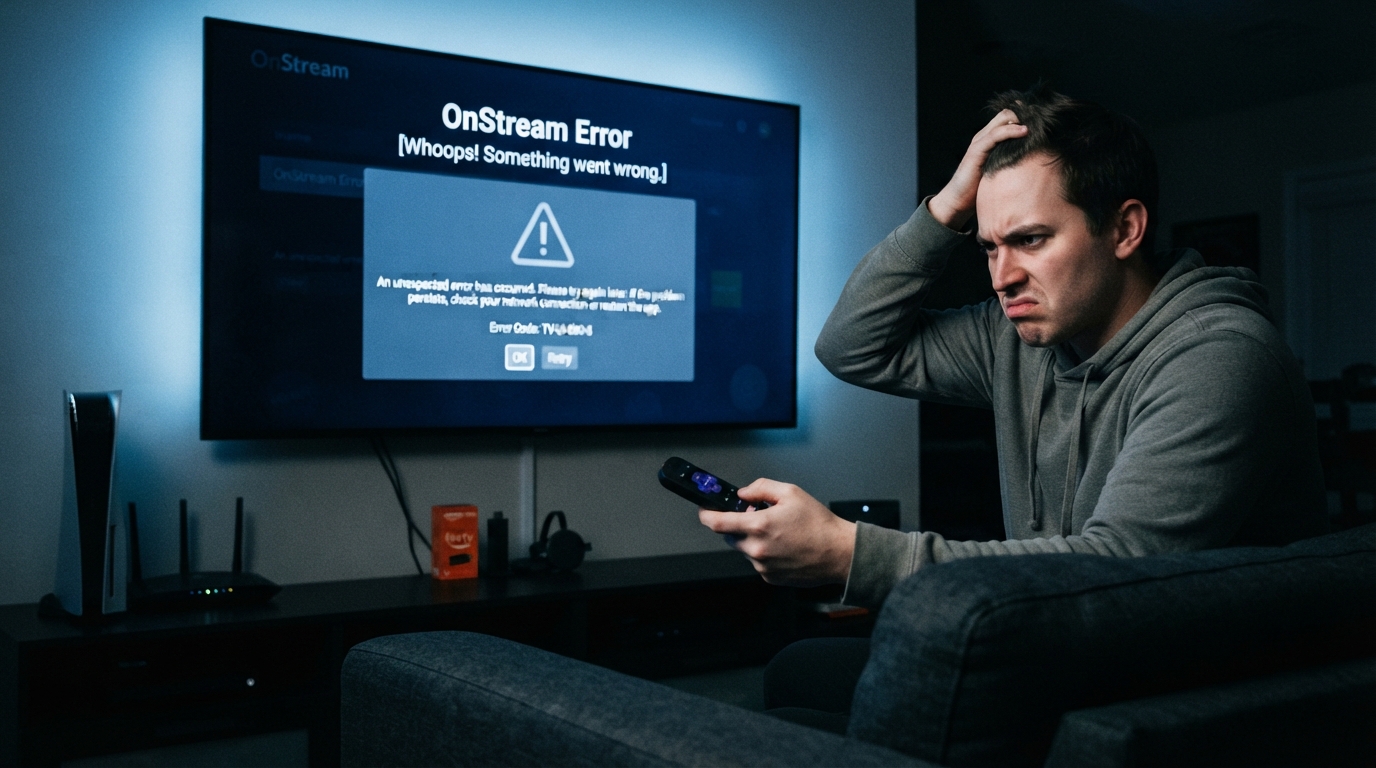
If the OnStream app keeps crashing whenever you open it or while you’re watching movies and TV shows, you’re not alone. This issue can be caused by corrupted cache files, outdated app versions, low device storage, software bugs, or network problems. Fortunately, most crashing issues can be resolved with a few simple troubleshooting steps.
This guide explains the most common reasons why OnStream crashes and provides effective solutions to help you get the app working smoothly again.
Why Does OnStream Keep Crashing?
There are several possible reasons why the app may crash unexpectedly, including:
- Outdated version of the OnStream app
- Corrupted cache or app data
- Insufficient device storage
- Low available RAM
- Software bugs
- Poor or unstable internet connection
- Device compatibility issues
- Conflicts caused by VPN or proxy services
Understanding the cause makes it easier to choose the right solution.
Restart the OnStream App
Temporary glitches can cause the app to close unexpectedly.
To restart the app:
- Close OnStream completely.
- Remove it from the Recent Apps screen.
- Wait a few seconds.
- Open the app again.
This simple step often fixes minor app crashes.
Restart Your Device
Restarting your phone, tablet, Android TV, or Firestick refreshes the operating system and clears temporary issues.
Follow these steps:
- Turn off your device.
- Wait for 30 seconds.
- Turn it back on.
- Launch OnStream.
Many users find that a restart resolves random crashes.
Check Your Internet Connection
Although internet issues don’t always cause crashes, an unstable connection can lead to unexpected app behavior.
Try these tips:
- Switch between Wi-Fi and mobile data.
- Restart your router.
- Check your internet speed.
- Move closer to your Wi-Fi router if the signal is weak.
A stable connection improves streaming performance.
Clear the App Cache
Corrupted cache files are one of the most common causes of app crashes.
To clear the cache:
- Open Settings.
- Go to Apps.
- Select OnStream.
- Tap Storage.
- Choose Clear Cache.
Restart the app after clearing the cache.
Clear App Data
If the issue continues, clearing the app data may solve it.
Steps:
- Open Settings > Apps > OnStream.
- Tap Storage.
- Select Clear Data.
- Open the app again.
This removes temporary files and restores the app to its default settings.
Update OnStream to the Latest Version
Older versions may contain bugs that cause the app to crash.
To update:
- Download the latest official version of OnStream.
- Install the update.
- Restart your device.
- Launch the app.
The latest version often includes bug fixes and performance improvements.
Free Up Device Storage
Running low on storage can make apps unstable.
To free up space:
- Delete unused apps.
- Remove unnecessary photos and videos.
- Clear downloads and temporary files.
- Empty your recycle bin if available.
Maintaining sufficient free storage helps OnStream run more smoothly.
Close Background Apps
Too many apps running at the same time can consume RAM and force OnStream to crash.
Try the following:
- Close unnecessary background apps.
- Stop large downloads.
- Restart the device if memory usage is high.
This gives OnStream more system resources to operate properly.
Disable VPN or Proxy
Some VPN servers may interfere with OnStream’s connection and cause instability.
To test this:
- Turn off your VPN.
- Disable any proxy settings.
- Restart the app.
- Check if the crashing issue has been resolved.
If the app works normally, try a different VPN server if you need one.
Check for Android System Updates
An outdated operating system can create compatibility issues with newer app versions.
To update your device:
- Open Settings.
- Tap System Update.
- Install any available updates.
- Restart your device.
System updates improve stability and app compatibility.
Check If OnStream Servers Are Experiencing Issues
Sometimes crashes occur because the app cannot communicate with its servers.
If there is a server outage:
- Wait until the service is restored.
- Check official announcements or user communities for updates.
- Try opening the app again later.
Server-related issues usually resolve without any action on your device.
Reinstall the OnStream App
If none of the previous solutions work, reinstalling the app may fix corrupted installation files.
Steps:
- Uninstall OnStream.
- Restart your device.
- Download the latest version.
- Install the app.
- Open it and test its performance.
A fresh installation often resolves persistent crashing issues.
Check Device Compatibility
If you’re using an older device, it may not meet the requirements for the latest version of OnStream.
Ensure that:
- Your Android version is supported.
- Your device has enough RAM.
- You have sufficient storage available.
Using a compatible device helps prevent unexpected crashes.
Force Stop the App
Force stopping the app can eliminate temporary background errors.
To do this:
- Open Settings.
- Go to Apps.
- Select OnStream.
- Tap Force Stop.
- Open the app again.
This refreshes the app without requiring a full device restart.
Contact OnStream Support
If OnStream continues to crash after trying all of these solutions, you may need assistance from the support team.
When requesting help, provide:
- Device model
- Android version
- OnStream app version
- Screenshot of any error message
- Description of when the app crashes
Sharing detailed information allows the support team to identify the problem more quickly.