OnStream Not Working on Firestick – Step-by-Step Fix
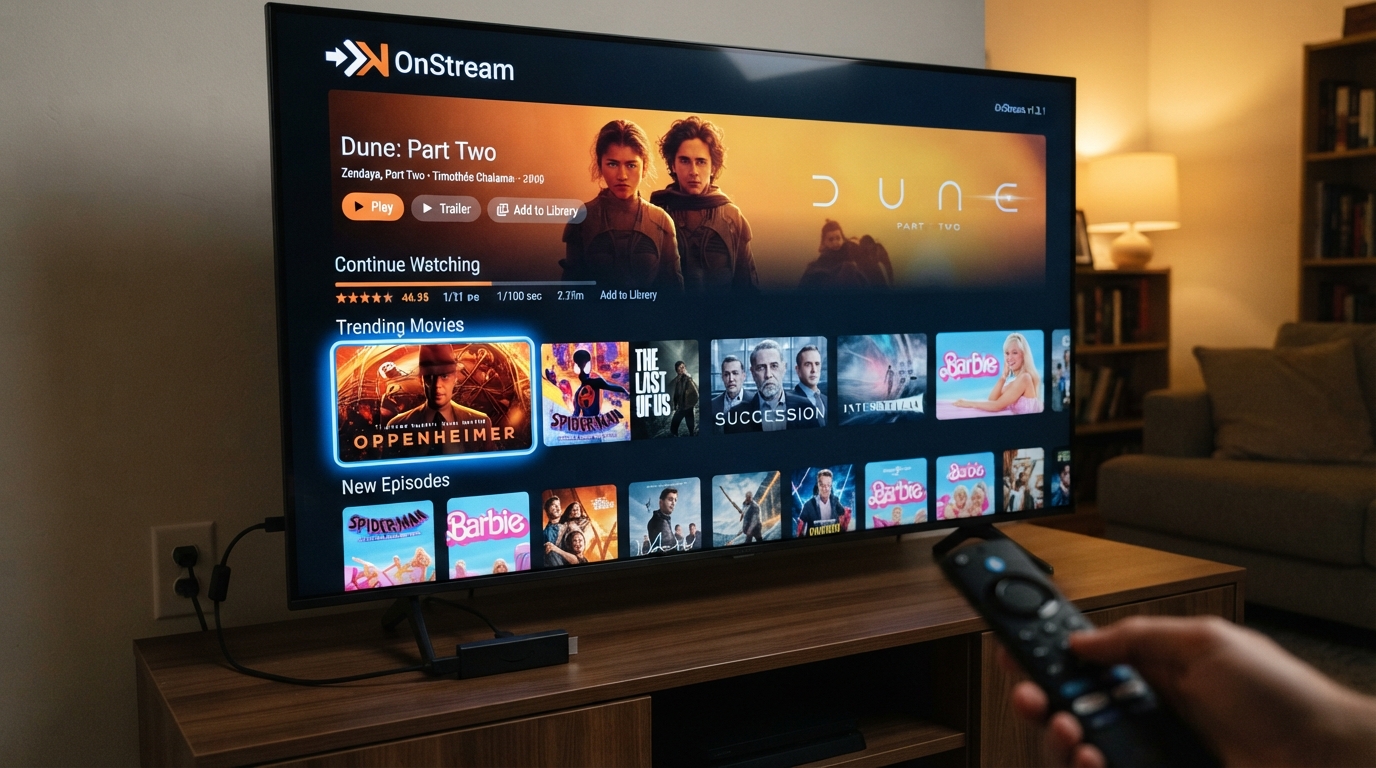
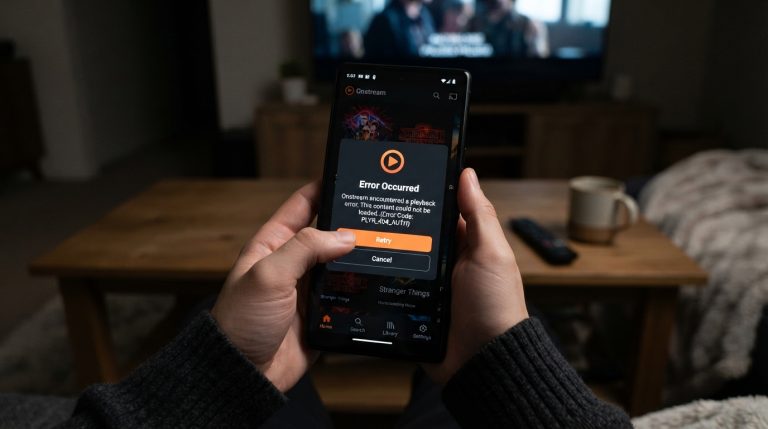
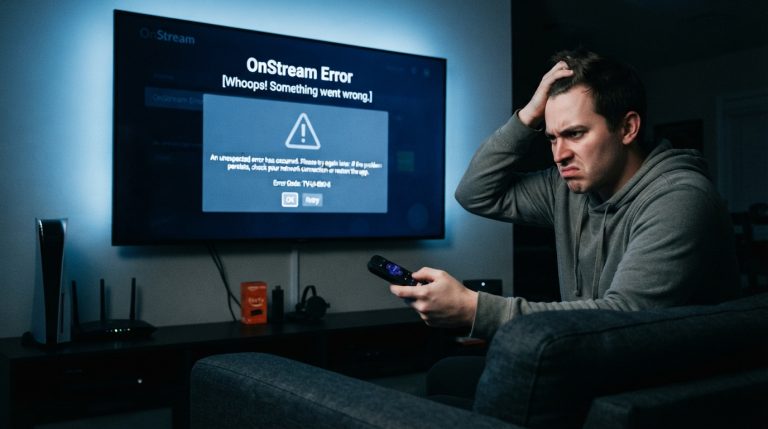
If OnStream is not working on your Amazon Firestick, don’t panic. Many users occasionally face issues such as the app not opening, getting stuck on the loading screen, buffering continuously, crashing unexpectedly, or displaying playback errors. These problems are often caused by internet connectivity issues, outdated app versions, corrupted cache files, or temporary server outages.
This guide explains the most effective ways to fix OnStream on Firestick so you can get back to streaming your favorite movies and TV shows.
Why Is OnStream Not Working on Firestick?
Several factors can prevent OnStream from functioning properly on Firestick, including:
- Slow or unstable internet connection
- Outdated OnStream app
- Corrupted cache or app data
- Low Firestick storage
- Temporary server maintenance
- Software bugs
- Fire OS compatibility issues
- VPN or proxy conflicts
Once you identify the possible cause, troubleshooting becomes much easier.
Check Your Internet Connection
A reliable internet connection is essential for streaming.
Try these steps:
- Restart your Wi-Fi router.
- Reconnect your Firestick to Wi-Fi.
- Run a speed test if possible.
- Move your router closer to the Firestick.
- Disconnect other devices using the same network.
If your connection is unstable, videos may fail to load or buffer constantly.
Restart Your Firestick
A simple restart can clear temporary glitches.
To restart your Firestick:
- Go to Settings.
- Select My Fire TV.
- Choose Restart.
Alternatively, unplug the Firestick from the power source for 30 seconds before plugging it back in.
After restarting, launch OnStream again.
Force Stop the OnStream App
If the app freezes or becomes unresponsive, force stopping it may help.
Steps:
- Open Settings.
- Select Applications.
- Tap Manage Installed Applications.
- Choose OnStream.
- Select Force Stop.
Wait a few seconds before reopening the app.
Clear the App Cache
Corrupted cache files are one of the most common causes of Firestick app problems.
To clear the cache:
- Open Settings.
- Select Applications.
- Tap Manage Installed Applications.
- Select OnStream.
- Choose Clear Cache.
Launch the app again and check whether the issue has been resolved.
Clear App Data
If clearing the cache doesn’t solve the problem, clear the app data.
Steps:
- Go to Settings > Applications.
- Open Manage Installed Applications.
- Select OnStream.
- Tap Clear Data.
This resets the app and removes temporary files that may be causing errors.
Update OnStream
Running an outdated version of OnStream can lead to compatibility issues and playback errors.
To update the app:
- Download the latest version from a trusted source.
- Install it over the existing version.
- Restart your Firestick.
- Open the app again.
Using the newest version ensures you receive the latest bug fixes and performance improvements.
Check Available Storage
Firestick devices have limited internal storage. When storage becomes full, apps may stop working correctly.
To free up storage:
- Delete unused apps.
- Remove unnecessary downloads.
- Clear cache from other installed apps.
- Restart the device after cleaning up storage.
Having enough free space improves overall system performance.
Update Fire OS
An outdated Fire OS version may create compatibility issues with newer apps.
To check for updates:
- Open Settings.
- Select My Fire TV.
- Choose About.
- Select Check for Updates.
- Install any available updates.
Restart your Firestick after updating.
Disable VPN or Proxy
If you’re using a VPN or proxy service, it may interfere with OnStream’s connection.
Try these steps:
- Disable your VPN.
- Restart OnStream.
- Check whether the app works normally.
If disabling the VPN resolves the issue, try connecting through another server if needed.
Reinstall the OnStream App
If the app continues to malfunction, reinstalling it can replace damaged installation files.
To reinstall:
- Uninstall OnStream.
- Restart your Firestick.
- Download the latest version.
- Install the app again.
- Launch it and test its performance.
A fresh installation often fixes persistent problems.
Check If OnStream Servers Are Down
Sometimes the issue isn’t caused by your Firestick.
If OnStream’s servers are experiencing maintenance or an outage:
- Wait until the service is restored.
- Check official announcements or community forums for updates.
- Try using the app again later.
No troubleshooting on your Firestick will resolve a server-side problem.
Restart Your Router
If other streaming apps are also running slowly, your router may be the cause.
To refresh your network:
- Turn off your router.
- Wait for one minute.
- Turn it back on.
- Reconnect your Firestick.
This creates a fresh internet connection and may improve streaming performance.
Reduce Background Activity
Although Firestick doesn’t run many background apps, too many active applications can reduce available memory.
To improve performance:
- Close unused apps.
- Restart the Firestick regularly.
- Avoid running multiple streaming apps simultaneously.
This helps OnStream run more smoothly.
Contact OnStream Support
If none of the above solutions work, the problem may be related to the app itself.
When contacting support, provide:
- Firestick model
- Fire OS version
- OnStream app version
- Screenshot of the error message
- Description of the issue
Providing accurate information helps the support team identify the problem more quickly.
Most OnStream issues on Firestick are caused by temporary software glitches, outdated app versions, poor internet connectivity, or corrupted cache files. By following the troubleshooting steps in this guide, you can resolve most problems and enjoy a smooth streaming experience on your Firestick.