How to Enable Subtitles in OnStream
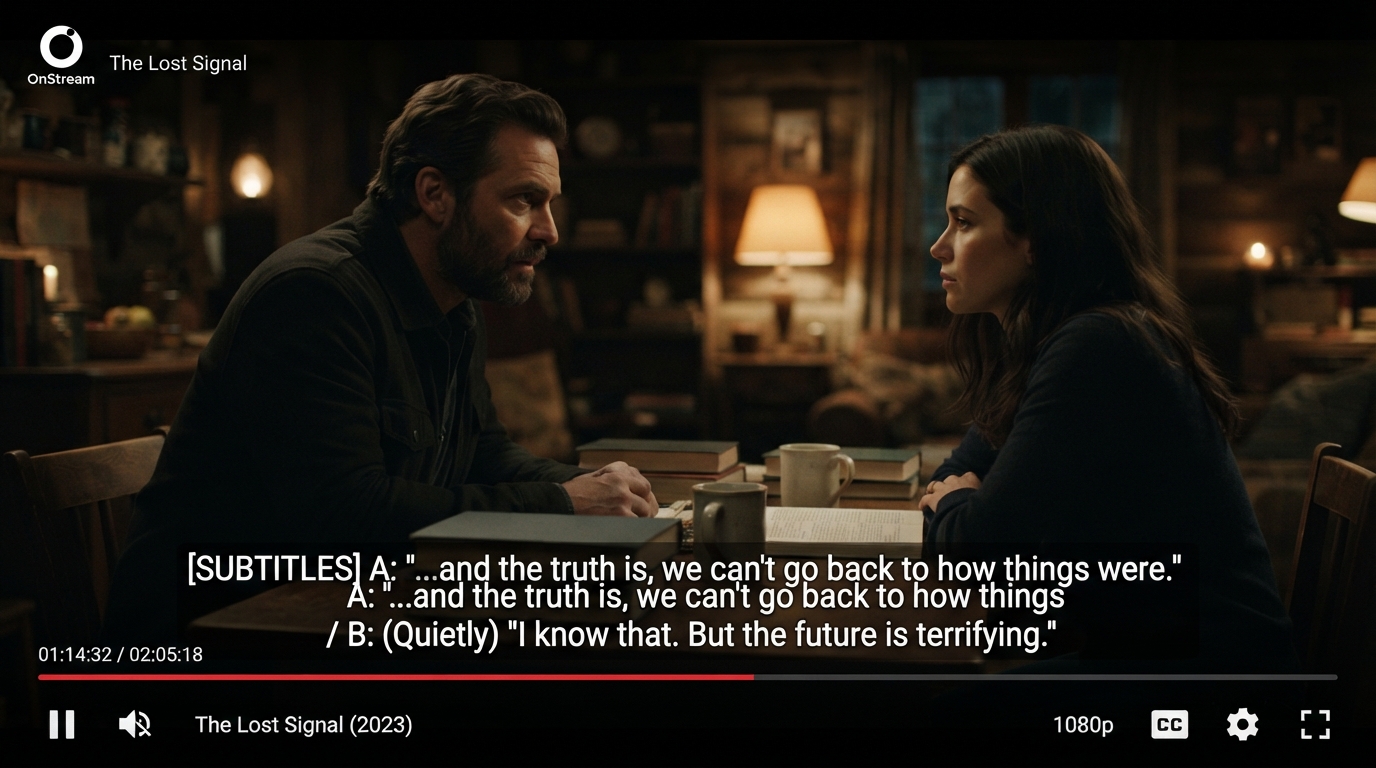
Subtitles are an essential feature for many OnStream users. Whether you’re watching a foreign-language movie, trying to understand fast dialogue, or streaming in a noisy environment, subtitles can significantly improve your viewing experience. Fortunately, enabling subtitles in OnStream is usually quick and straightforward.
In this guide, you’ll learn how to turn on subtitles in OnStream, change subtitle languages (when available), and troubleshoot common subtitle problems.
Why Use Subtitles in OnStream?
Subtitles offer several benefits, including:
- Better understanding of dialogue
- Support for foreign-language movies and TV shows
- Improved accessibility for people with hearing difficulties
- Easier viewing in noisy environments
- Better comprehension of accents
Many users prefer to keep subtitles enabled all the time for a more enjoyable streaming experience.
How to Turn On Subtitles in OnStream
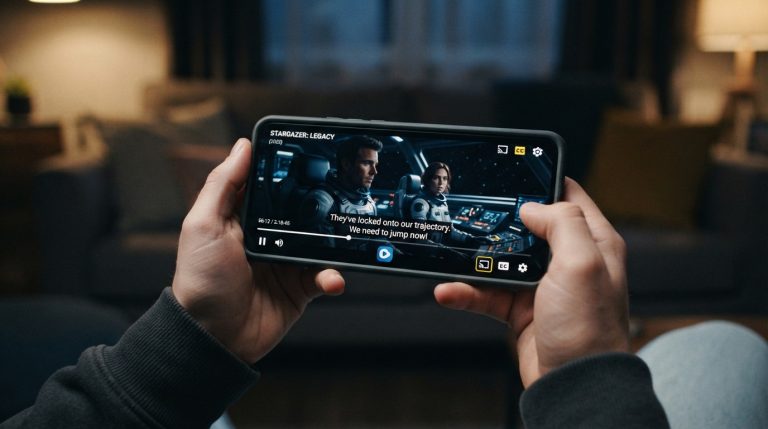
Follow these steps to enable subtitles while watching a movie or TV show:
- Open the OnStream app.
- Select the movie or TV show you want to watch.
- Start playing the video.
- Tap the screen to display the playback controls.
- Look for the Subtitles (CC) or Caption icon.
- Tap the icon.
- Select your preferred subtitle language if available.
- Resume playback.
The subtitles should appear on the screen within a few seconds.
How to Change the Subtitle Language
Many titles offer subtitles in multiple languages.
To switch languages:
- Open the subtitle menu during playback.
- Browse the available language options.
- Select the language you want.
- Continue watching.
Keep in mind that subtitle availability varies by title, so not every movie or TV show will include the same language options.
How to Turn Off Subtitles
If you no longer want subtitles:
- Open the playback controls.
- Tap the Subtitles icon.
- Select Off or None.
The subtitles will disappear immediately.
Subtitles Not Showing?
If subtitles do not appear after enabling them, try these solutions:
- Pause the video and play it again.
- Restart the OnStream app.
- Switch to another subtitle language if available.
- Check whether the selected movie supports subtitles.
- Update OnStream to the latest version.
Sometimes the issue is related to a specific title rather than the app itself.
Subtitles Out of Sync
If the subtitles appear too early or too late, try the following:
- Restart the video.
- Close and reopen the app.
- Clear the app cache.
- Check for an app update.
- Try another movie to determine if the issue is content-specific.
Synchronization issues are often temporary and may only affect certain videos.
Missing Subtitle Languages
Not every movie or TV show includes subtitles in every language.
If your preferred language isn’t available:
- Check whether another version of the title offers additional subtitle options.
- Update the app.
- Wait for future updates that may add more subtitle support.
The available subtitle languages depend on the content.
Improve Subtitle Visibility
If you’re having trouble reading subtitles:
- Increase your screen brightness.
- Watch on a larger display such as Android TV.
- Sit closer to the screen if using a television.
- Use HD playback whenever possible.
A clear display makes subtitles easier to read.
Keep OnStream Updated
Developers frequently release updates that improve subtitle compatibility and fix playback bugs.
Installing the latest version can help resolve:
- Missing subtitles
- Subtitle loading errors
- Synchronization problems
- Playback issues
Keeping the app updated ensures the best possible viewing experience.
Clear the App Cache
Corrupted cache files can sometimes interfere with subtitle loading.
To clear the cache:
- Open Settings.
- Select Apps.
- Tap OnStream.
- Open Storage.
- Select Clear Cache.
After clearing the cache, reopen the app and test the subtitles again.
Check Your Internet Connection
Subtitle files are often loaded during playback. A slow or unstable internet connection may prevent them from loading correctly.
For smoother streaming:
- Use a stable Wi-Fi connection.
- Restart your router if needed.
- Reduce network congestion by disconnecting unused devices.
- Avoid switching between Wi-Fi and mobile data while streaming.
A reliable internet connection helps subtitles load more consistently.
Restart Your Device
If subtitle issues continue, restart your Android phone, tablet, Android TV, or Firestick.
Restarting the device refreshes system processes and can resolve temporary software glitches affecting subtitle playback.
Tips for the Best Subtitle Experience
To enjoy subtitles without interruptions:
- Use the latest version of OnStream.
- Keep your device updated.
- Maintain a stable internet connection.
- Clear the app cache occasionally.
- Choose HD streaming when available.
- Enable subtitles before starting long movies or TV series.
Following these practices helps ensure subtitles load correctly and remain synchronized throughout playback.
Subtitles make OnStream more accessible and enjoyable for a wide range of users. Whether you’re watching international films, following complex dialogue, or simply prefer reading along, enabling subtitles is a simple way to enhance your streaming experience. If you encounter subtitle issues, the troubleshooting steps above will resolve most common problems and help you get back to watching your favorite content.