Why Does OnStream Keep Asking to Update?
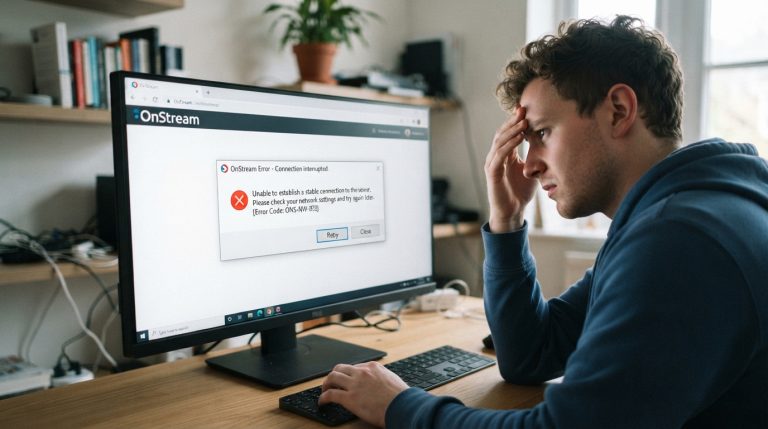
If the OnStream app repeatedly asks you to install the latest update every time you open it, you’re not alone. Many users encounter this issue after a new version of the app is released. While update notifications are normal, repeatedly seeing the same update prompt can be frustrating, especially if you’ve already installed the latest version.
In this guide, we’ll explain why OnStream keeps asking you to update and how you can resolve the problem.
Common Reasons OnStream Keeps Requesting an Update
There are several reasons why the app may continue displaying an update message:
- You’re using an outdated version of the app.
- The latest update wasn’t installed correctly.
- The downloaded APK file is corrupted.
- Cached app data is causing a version mismatch.
- The app cannot verify the installed version.
- A temporary bug is affecting the update process.
- The app requires a newer version to remain compatible with its servers.
Identifying the cause will help you choose the right solution.
Make Sure You Installed the Latest Version
The first step is to verify that you are actually using the newest version of OnStream.
If you’re unsure:
- Check the installed app version in your device settings.
- Compare it with the latest version available from the source where you downloaded the app.
- Install the newest version if yours is outdated.
Using an older release is the most common reason for repeated update requests.
Restart Your Device
Sometimes Android doesn’t fully register the new installation until the device is restarted.
To restart:
- Turn off your phone or tablet.
- Wait for about 30 seconds.
- Turn it back on.
- Open OnStream again.
A restart refreshes system services and may stop the update prompt.
Clear the App Cache
Old cache files may cause the app to incorrectly detect your installed version.
To clear the cache:
- Open Settings.
- Tap Apps.
- Select OnStream.
- Tap Storage.
- Choose Clear Cache.
Reopen the app to see if the update message disappears.
Clear App Data
If clearing the cache doesn’t work, try clearing the app data.
Steps:
- Open Settings > Apps > OnStream.
- Select Storage.
- Tap Clear Data.
This removes temporary files that may be interfering with version verification.
Reinstall the App
If the installation was incomplete or corrupted, reinstalling the app often resolves the issue.
Follow these steps:
- Uninstall OnStream.
- Restart your device.
- Download the latest version from a trusted source.
- Install the app again.
- Launch the app.
A clean installation replaces damaged files and ensures the newest version is installed correctly.
Check Your Internet Connection
OnStream may need to communicate with its servers to verify the app version.
A poor internet connection can interrupt this process.
Try these tips:
- Restart your Wi-Fi router.
- Switch between Wi-Fi and mobile data.
- Test your internet speed.
- Avoid unstable public Wi-Fi networks.
A stable connection helps the app complete version checks successfully.
Free Up Device Storage
If your device is running low on storage, updates may not install correctly.
To create more free space:
- Delete unused apps.
- Remove unnecessary downloads.
- Clear temporary files.
- Delete duplicate photos and videos.
Adequate storage helps Android complete app installations without errors.
Check for Android System Updates
Sometimes the issue is related to compatibility between the app and your Android version.
To update your device:
- Open Settings.
- Go to System Update.
- Install any available updates.
- Restart your device.
Keeping Android updated can improve app compatibility.
Avoid Installing Multiple Versions
If you have installed different versions of OnStream over time, conflicting files may remain on your device.
Before reinstalling:
- Completely uninstall the current version.
- Remove any leftover installation files if necessary.
- Install only one version of the app.
This helps prevent version conflicts.
Wait for a New App Release
Occasionally, an update notification may be caused by a temporary bug in the current version of the app.
If many users are experiencing the same issue, the developers may release another update to fix it.
If you’ve already tried the common troubleshooting steps, waiting for the next version may be the best option.
Tips to Prevent Future Update Issues
To reduce update-related problems in the future:
- Keep OnStream updated whenever a new version is released.
- Download updates only from trusted sources.
- Restart your device after installing updates.
- Clear the app cache occasionally.
- Keep enough free storage available.
- Install Android security and system updates regularly.
These practices help ensure that app updates install correctly and reduce the likelihood of repeated update prompts.
If OnStream continues asking you to update even after installing the latest version, the issue is usually related to an incomplete installation, cached data, or a temporary compatibility bug. In most cases, clearing the cache, reinstalling the app, and ensuring you’re using the newest version will resolve the problem and allow you to use the app without repeated update notifications.